How to Use ChatGPT to Create Stunning AI Photos in Seconds
Learn how to use ChatGPT to create realistic AI photos, professional images, thumbnails, marketing graphics, and digital artwork. Complete beginner’s guide for 2026
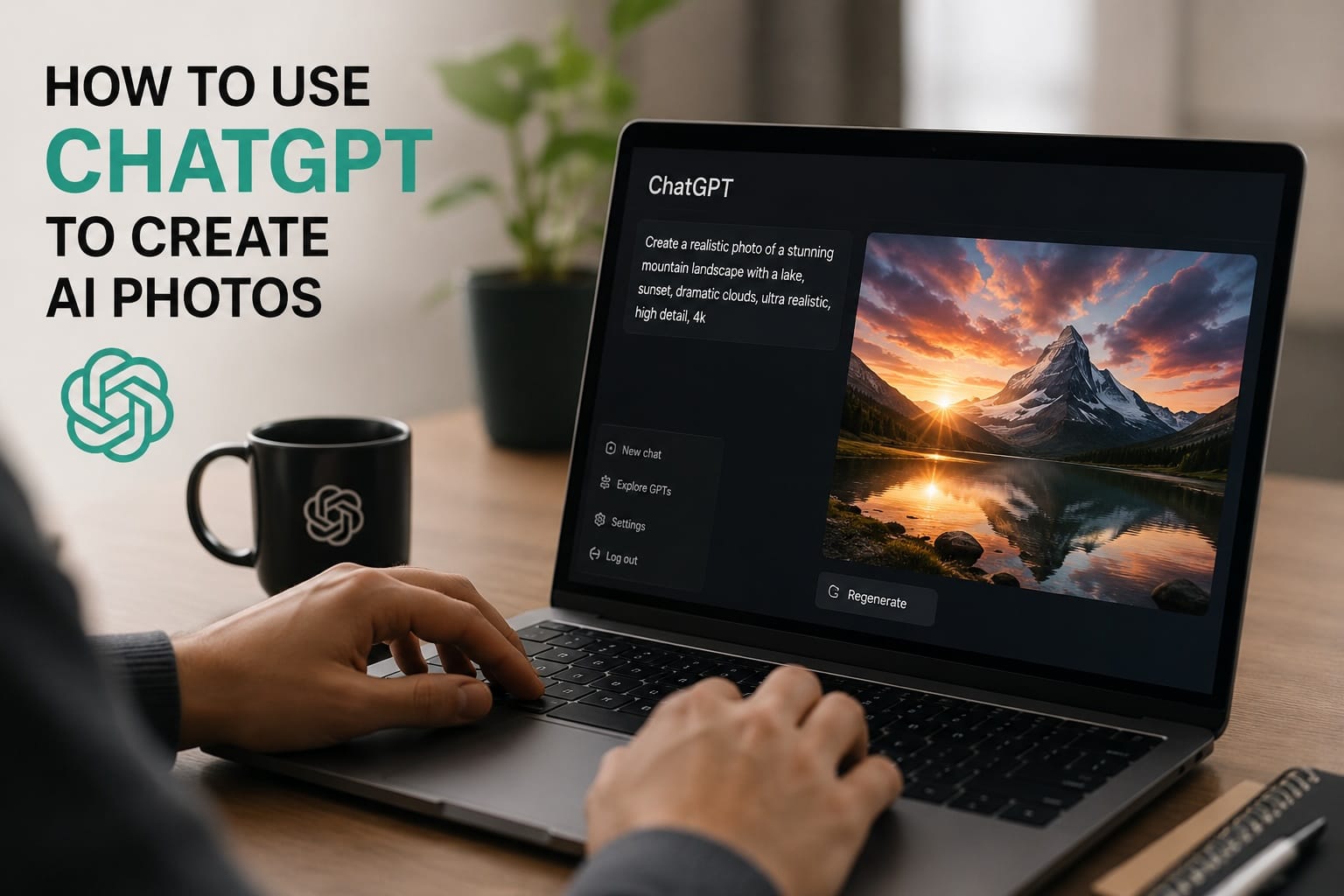
Artificial intelligence has transformed digital content creation, and one of the most popular tools available today is ChatGPT. While many people use ChatGPT for writing, research, and coding, fewer realize that it can also help create high-quality AI-generated photos and images within seconds.
Whether you are a content creator, blogger, marketer, business owner, or simply curious about AI, learning how to use ChatGPT to generate images can save time, reduce design costs, and unlock new creative possibilities.
What Is ChatGPT Image Generation?
ChatGPT can create images from text descriptions, often called prompts. Instead of using complex graphic design software, users simply describe the image they want, and AI generates it automatically.
For example, you can ask ChatGPT to create:
- Realistic business photos
- Social media graphics
- Blog illustrations
- Product mockups
- YouTube thumbnails
- Travel scenes
- Marketing banners
- Fantasy artwork
- Educational graphics
The quality of modern AI-generated images has improved dramatically, making them useful for both personal and professional projects.
How to Create AI Photos with ChatGPT
Creating images with ChatGPT is simple.
Step 1: Open ChatGPT
Log into ChatGPT and select the image generation feature.
Step 2: Describe the Image
The most important step is writing a detailed prompt.
Instead of writing:
“Create a dog.”
Try:
“Create a realistic golden retriever sitting in a green park during sunset, professional photography, natural lighting, high detail, shallow depth of field.”
The more information you provide, the better the result.
Step 3: Generate the Image
Submit your prompt and wait for the AI to create the image.
Most images are generated within seconds.
Step 4: Improve the Results
If the first image is not exactly what you want, continue refining your prompt.
You can modify:
- Backgrounds
- Colors
- Lighting
- Camera angles
- Clothing
- Facial expressions
- Art style
- Resolution
Small adjustments often produce dramatically better results.
Tips for Creating Better AI Images
Be Specific
Detailed prompts generally outperform short prompts.
For example:
Bad prompt:
“Modern office”
Better prompt:
“Modern corporate office with glass walls, smiling business team working on laptops, natural daylight, ultra-realistic photography, 4K quality.”
Mention the Style
Specify exactly what type of image you want:
- Realistic photo
- Studio photography
- Cinematic scene
- Watercolor painting
- Anime artwork
- Digital illustration
- 3D render
Include Lighting Details
Lighting often makes the biggest difference.
Popular options include:
- Golden hour lighting
- Soft natural light
- Studio lighting
- Dramatic cinematic lighting
- Neon lighting
Define Camera Perspective
Examples:
- Close-up portrait
- Wide-angle shot
- Drone view
- Professional product photography
Popular Uses for ChatGPT Image Generation
Content Marketing
Businesses use AI images for:
- Blog articles
- Landing pages
- Advertising campaigns
- Social media content
YouTube and Video Platforms
Creators generate:
- Video thumbnails
- Channel banners
- Promotional graphics
E-commerce
Online stores create:
- Product concepts
- Lifestyle images
- Advertising visuals
Education
Teachers and students use AI-generated illustrations to explain complex topics visually.
Common Mistakes to Avoid
Many beginners make these mistakes:
Using Very Short Prompts
Short prompts often produce generic results.
Ignoring Style Descriptions
Without style instructions, results may not match expectations.
Not Iterating
Professional-quality images usually come after several prompt improvements.
Forgetting Context
Include environment, lighting, mood, and composition whenever possible.
Example Prompts You Can Use
Business Portrait
“Professional businesswoman smiling in a modern office, realistic photography, natural light, high-end corporate style, ultra detailed.”
Travel Scene
“Tropical beach at sunset with crystal clear water, palm trees, cinematic lighting, professional travel photography.”
Technology Theme
“Futuristic AI data center with glowing servers, blue ambient lighting, ultra-realistic, science fiction atmosphere.”
YouTube Thumbnail
“Excited entrepreneur pointing at AI-generated images on a computer screen, bright colors, high contrast, viral YouTube thumbnail style.”
Why AI Image Generation Is Growing So Fast
The global demand for visual content continues to increase every year. Businesses, creators, and marketers need thousands of images across websites, videos, social media platforms, and advertising campaigns.
AI image generation helps by:
- Reducing design costs
- Saving time
- Increasing productivity
- Creating unique visuals
- Scaling content production
As AI technology improves, image quality is becoming nearly indistinguishable from traditional photography in many situations.
Final Thoughts
Learning how to use ChatGPT to create AI photos is one of the most valuable digital skills in 2026. With detailed prompts and a little experimentation, anyone can generate professional-quality images for websites, blogs, videos, social media, and business projects.
The key to success is simple: be specific, experiment with prompts, and continuously refine your results. The more detailed your instructions, the more impressive your AI-generated images will become.
Keys: how to use chatgpt, chatgpt image generation, create ai photos, ai image generator, chatgpt images, generate ai photos, realistic ai images, ai photography, create images with chatgpt, ai art generator.